
You can stipulate 2FA per client - so that a client's learners sign in with their password and a 6-digit code from an authenticator app.
Turn it on where it matters (for example, your own internal team, to meet Cyber Essentials compliance) and leave it off for clients where the extra step would add friction.
This is separate from your own admin 2FA. It applies only to the learners of the client you switch it on for - not your other clients and not your admins.
Turning it on
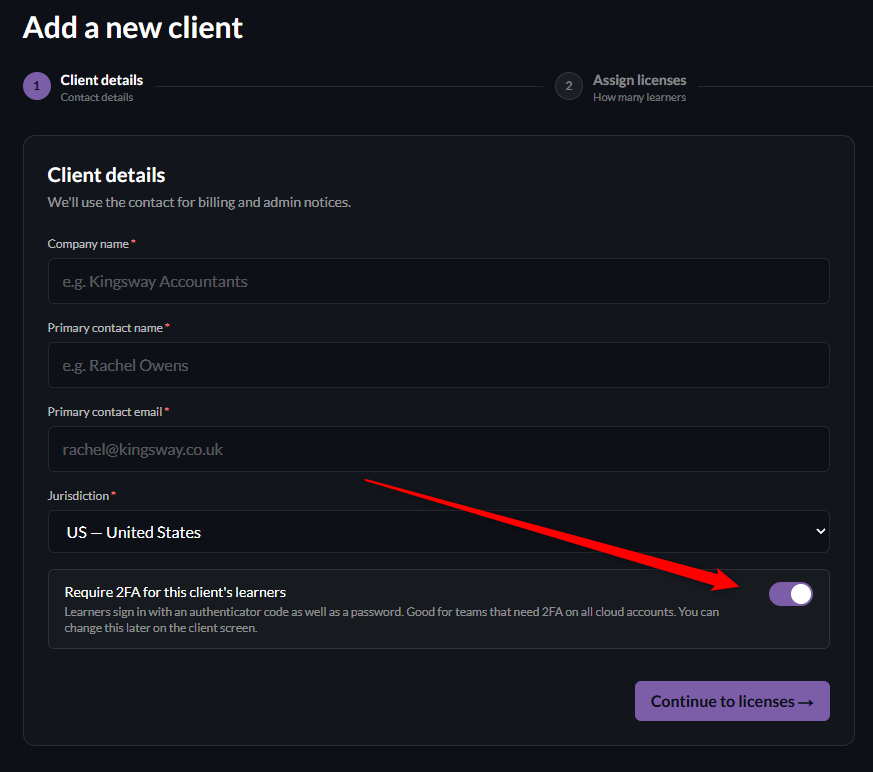
On a new client - the last step of the New client wizard has a "Require 2FA for this client's learners" toggle. Leave it off for most clients; switch it on for the ones that need it.
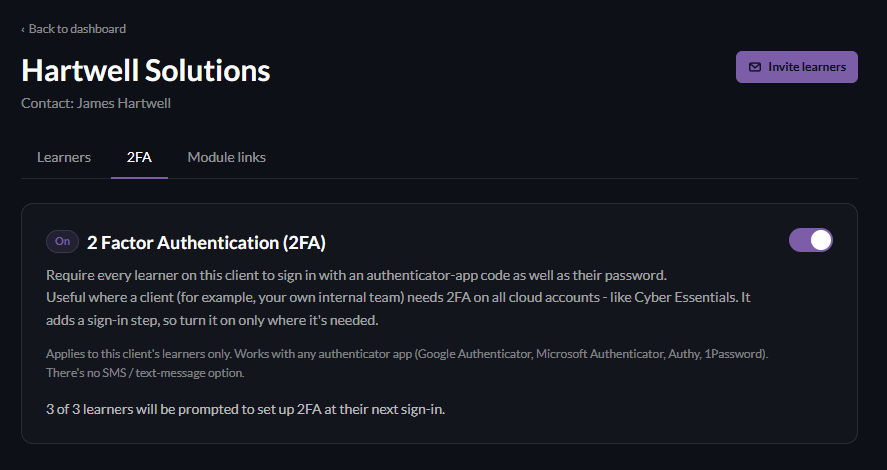
For an existing client - click on the client from the Client dashboard. Go to the 2FA tab, then toggle it on.
The policy applies immediately; learners are prompted at their next sign-in.
What your learners experience
Once 2FA is switched on for a specific client:
Learners already using the platform are asked to set up an authenticator app the next time they sign in.
Newly invited learners are prompted to set it up as soon as they accept their invite, before they reach their dashboard.
Every sign-in after that asks for a 6-digit code as well as a password.
Their step-by-step guide lives in the learner help centre under "Setting up two-factor authentication" - point them here if they get stuck.
Which apps work
Any standard authenticator app: Google Authenticator, Microsoft Authenticator, Authy, or 1Password.
There's no SMS / text-message option - 2FA uses an authenticator app only.
If a learner loses their phone
On the 2FA tab, find the learner and click Reset 2FA.
They then sign out, sign back in, and set up their authenticator again on their new device. You don't need to contact us to do this - it's yours to manage.
Turning it off
Should you choose to revoke 2FA access for whatever reason, simply open the client, go to the 2FA tab, and switch it off.
Those learners go back to signing in with just their password.
Good to know
New clients default to off. Nothing changes for a client until you deliberately switch it on.
It's per client, not per learner. When 2FA is on, it applies to every learner on that client - you can't exempt individuals.
It won't lock anyone out. A learner who hasn't set it up yet is simply walked through setup at their next sign-in; they're never blocked.