
If your organisation has turned on two-factor authentication (2FA) for your account, it adds a second check at sign-in - your password, plus a 6-digit code from an app on your phone - so that even if someone learns your password, they still can't get in.
You'll be asked to set it up once. After that it takes a couple of seconds each time you sign in.
What you'll need
A free authenticator app on your phone. Any of these work:
Google Authenticator
Microsoft Authenticator
Authy
1Password
They are all free and easily accessible from the Google Play store or App store.
There's no text-message option - 2FA uses an authenticator app only.
Setting it up (one time)
Sign in with your email and password as usual.
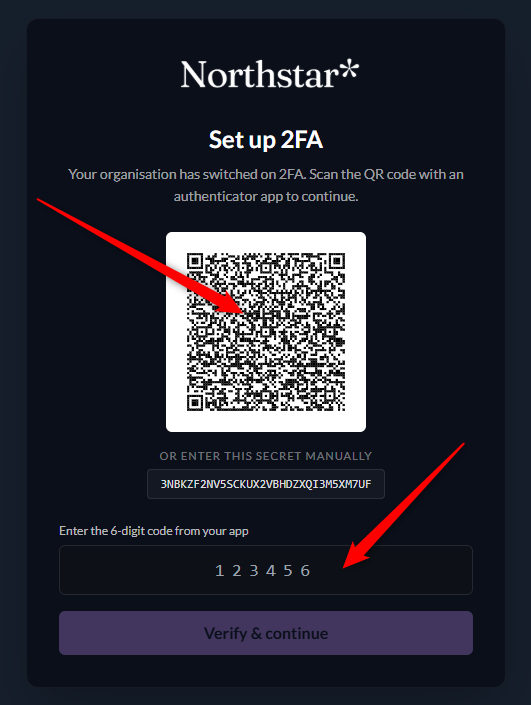
You'll see a Set up 2FA screen with a QR code.
Open your authenticator app and choose Add account (or the + button), then Scan a QR code.
Point your phone at the QR code showing on your login screen (after registration or you've logged in.
Your app adds "Safe AI Habits" and starts showing a 6-digit code that refreshes every 30 seconds.
Type the current 6-digit code into the box on screen and confirm.
That's it - you're set up, and you'll go straight to your dashboard.
Can't scan the code? Most apps let you type in a setup key instead. Choose "Enter a setup key" in your app and use the key shown under the QR code.
Signing in after setup
Each time you sign in you'll enter your password, then the current 6-digit code from your authenticator app.
The code changes every 30 seconds - just use whichever one is showing.
If you lose your phone or get a new one
Your codes live on your old phone, so a new phone won't have them.
Ask your team's administrator to reset your 2FA. Once they've done that, sign out, sign back in, and you'll be taken through the one-time setup again on your new device.
Common questions
Do I need to enter a code every single time?
Yes - that's what keeps the account secure. It only takes a moment.
I don't have a smartphone.
Speak to your administrator - 2FA needs an authenticator app, which runs on a phone or tablet.
The code isn't being accepted.
Authenticator codes are time-based, so make sure your phone's clock is set to update automatically. Also double-check you're reading the "Safe AI Habits" entry in your app, not another account. If it still fails, ask your administrator to reset your 2FA and try the setup again.