Add a secure second step to every admin account on your MSP's workspace.
When 2FA (2 Factor Authentication) is switched on, account admins are forced to sign in with their password followed by a 6-digit code from an authenticator app on their phone - so a stolen or guessed password isn't enough on its own.
The original admin invite does not enforce 2FA. This is an optional feature.
This feature applies to your admins only, not your learners.
Turning it on
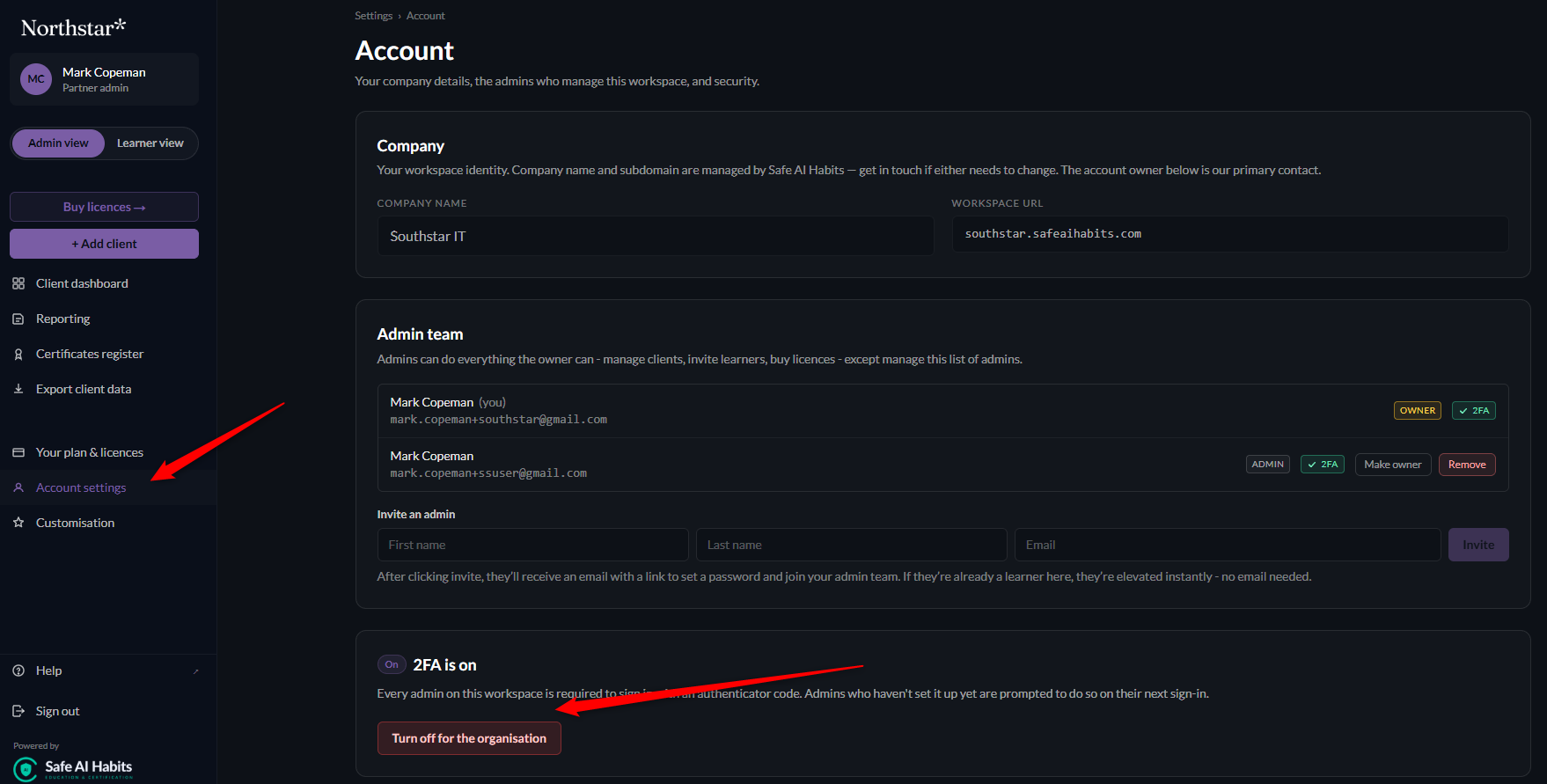
Logged in as an admin - go to Account settings and scroll down to the 2FA section.
Under 2 Factor Authentication (2FA), click "Enable for your organisation".
Scan the QR code with an authenticator app, then enter the 6-digit code to confirm.
That's it - 2FA is now enabled for your account.
Adding additional admin users
Once 2FA is enabled, it becomes required for every admin on the account:
Admins already set up are asked for a code each time they sign in.
Admins who haven't set it up yet are prompted to do so the next time they sign in.
Any admin you add later is asked to set it up on their first sign-in.
Your learners are never affected.
Which 2FA apps work
Any standard authenticator app, including:
Google Authenticator
Microsoft Authenticator
Authy
1Password
There is no SMS / text-message option - 2FA uses an authenticator app only.
Turning it off
Go to Account settings and choose "Turn off for the organisation". Admins will no longer be asked for a code when they sign in.
Lost or replaced phones
If an admin user loses access to their authenticator app, contact us and we'll reset their 2FA.
What if an admin user leaves the business?
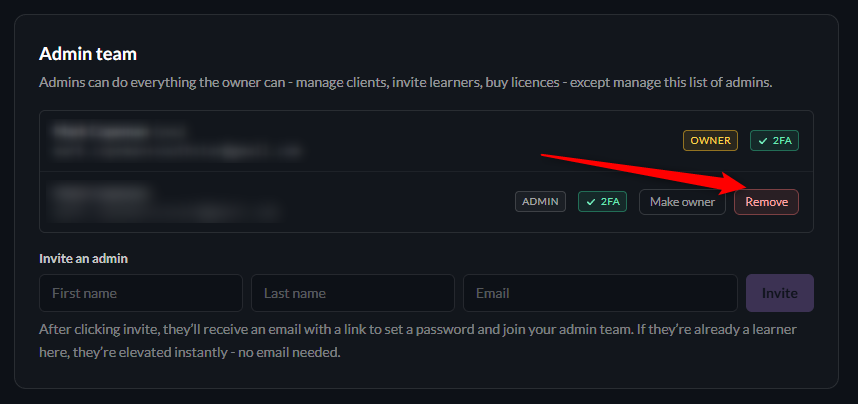
The owner of the account can remove a team admin's access as shown below - in Account settings.