Every client learner under your MSP sees your branding, not ours. Set it up once on the MSP settings page.
Branding
From the MSP admin sidebar, head to Branding.
Upload your dark and light logos:
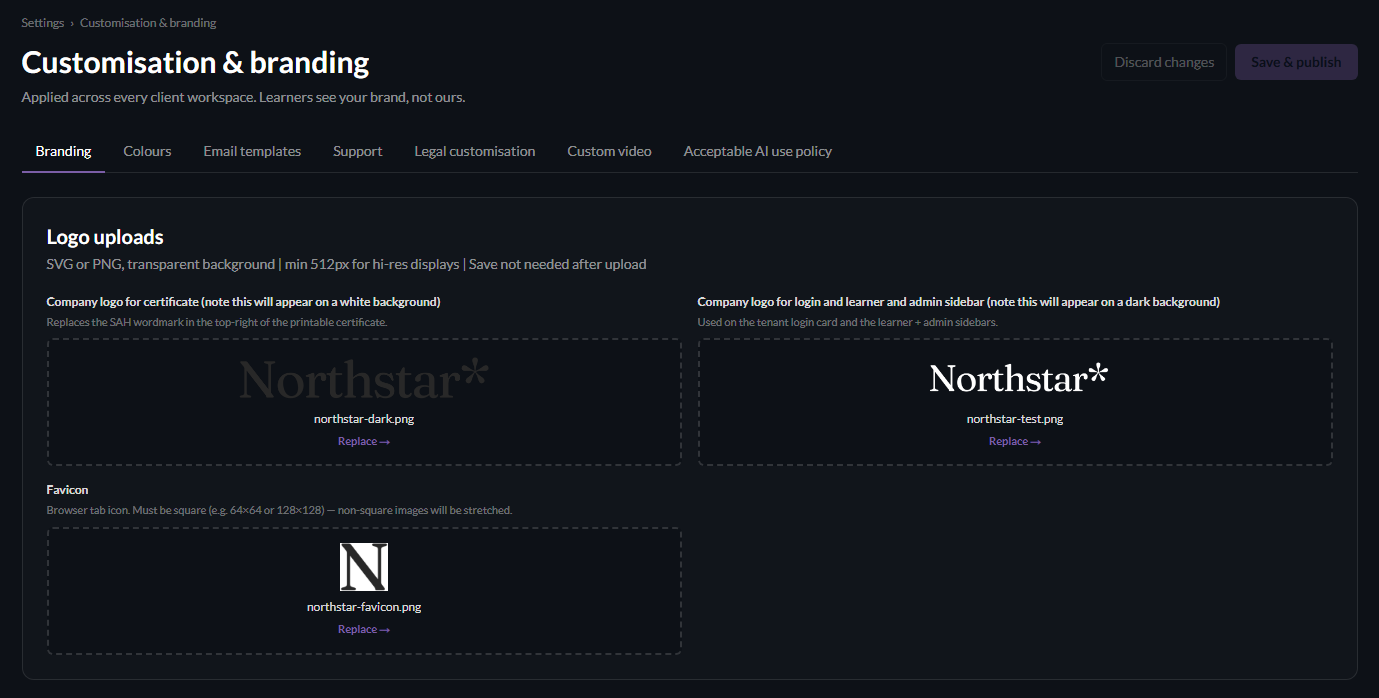
They will appear on your MSP's custom sub-domain login and within the app itself for admins and learners.
Note that the favicon will appear in your browser's tab. Nice touch eh?
Colours
Pick your primary colour (a teal or blue tends to work; we render it on buttons, badges and progress bars), and a success colour for “passed” states.
Email templates
Customise your client end-user invites and your 'nudge' emails.
Make them your own - add your personality
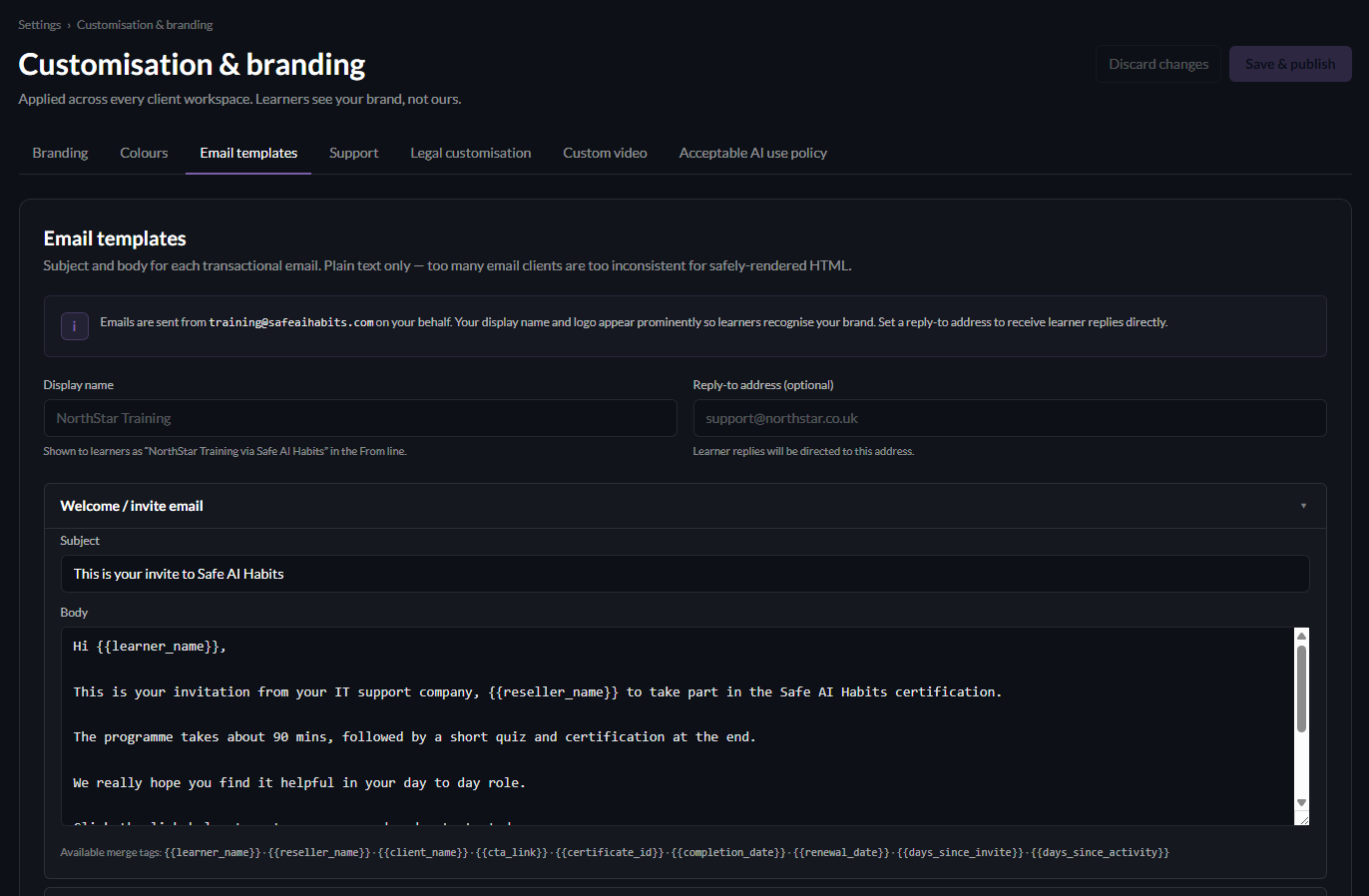
Add your display name and reply to addresses.
Note the mail merge fields in the two templates currently available.
Legal customisation
Switch your cookie / consent banner on or off here alongside any specific terms of service and privacy policy which appear in that banner.
Custom video
Add an OPTIONAL personal touch to your clients’ teams experience.
Add a short video link - a welcome from your team, some internal context, or a sign-off message and it appears as an optional module in the learner journey.
It’s your voice, alongside ours and makes things really personal.
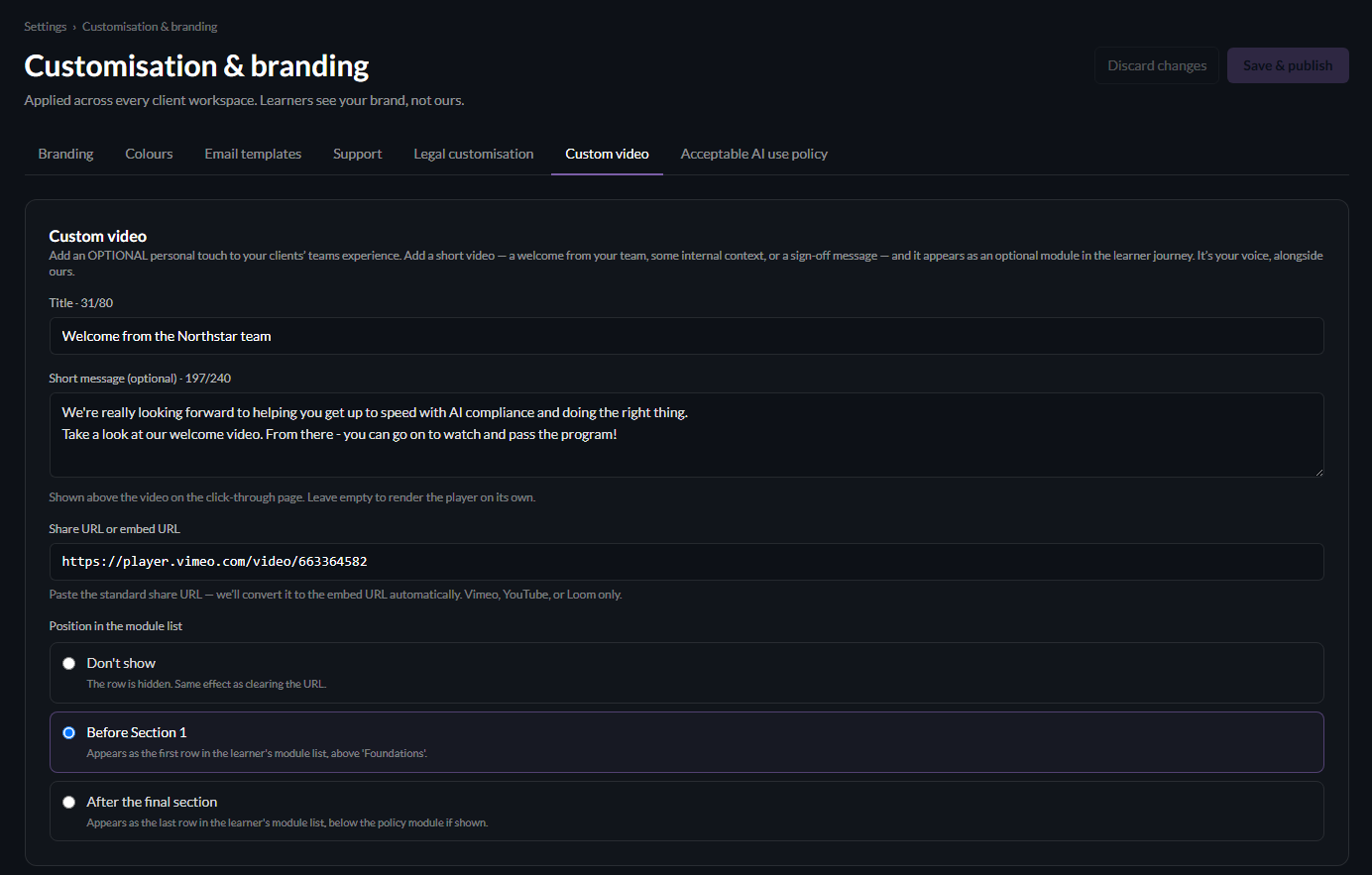
Enter your URL and choose where you would like to add it into the programme.
If you need help with hosting - talk to us - we'll help 😊
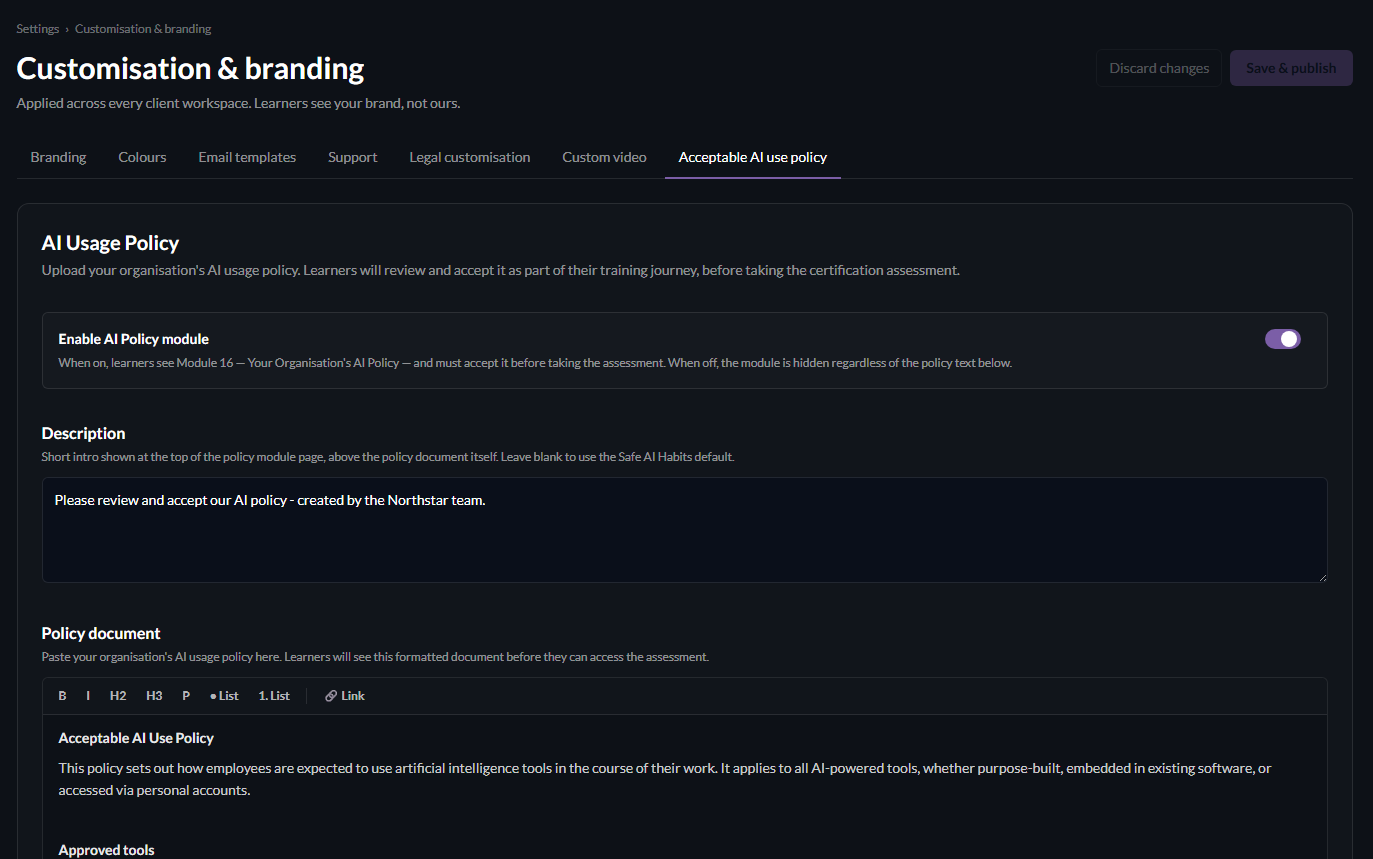
Acceptable AI use policy
Again - another (recommended) option for compliance.
Ask your end users to agree to the policy (which is MSP domain wide).
If this is toggled off - your end users will only see 15 modules, instead of 16.